Blog
Filter categoryHow to print high-contrast designs with a plotter

Technical Printing
|6 Dec 2024
Knowing how to print in high contrast allows professionals to create projects with bold colours, deep blacks, and sharp lines. These features are essential for prints such as architectural drawings, graphic designs, and technical plans. However, achieving the right balance of contrast without losing detail can be especially challenging in large format printing. Careful attention to settings, media, and colour management is the key to producing vivid, crisp results when printing high-contrast designs with a plotter.
Here, we'll share everything you need to know about how to print in high contrast. You'll learn how to prioritise high contrast in printing through:
- How to prepare design files with enhanced contrast and resolution
- Tips for selecting the ideal print settings for maximum clarity
- Choosing ink and media types that bring out the depth of dark tones and highlight brightness in light areas
- HP plotter features, such as high-resolution print modes and advanced colour management tools, that make it easier to create stunning, high-contrast prints consistently
- How to leverage your plotter's capability to create professional, eye-catching prints that bring out the full potential of your designs
Understanding High-Contrast Printing
Learning the basics of high-contrast printing will help you understand how to print in high contrast and avoid common challenges that are likely to arise in the process.
What Is High-Contrast Printing?
High-contrast printing is the process of creating a print with dark and light tones and a few graduations in between. It delivers intense, saturated colours and clean lines. Black and white are often used to create contrast, but many colour combinations can be equally effective.
Why High-Contrast Printing Matters for Design and Architecture
High contrast can be used in striking designs, photography, and architectural prints to ensure specific aspects of the print stand out. For instance, it can make blueprints more readable and draw attention to focal points in various designs.
Common Challenges in High-Contrast Printing
Without the right preparation, prints typically fail to meet user expectations. A range of issues can make prints appear muddy, faded, too dark, or off-colour. Challenges may be related to your monitor's brightness, low-quality ink, subpar software, and poor connections.
Common challenges include:
- Dark images
- Inaccurate colour
- Lack of detail
- Images or prints that fade quickly
Preparing Your Design for High-Contrast Printing
Preparing your design before printing will help you avoid common challenges to achieve the expected results.
Optimising Contrast and Brightness in Your Design Software
High-quality editing software allows you to access a range of adjustments to support colour management for high-contrast designs. These platforms include a contrast/brightness tool to change the number of shades between an image's lightest and darkest areas. Drag the slider that controls contrast to the right to increase an image's contrast until you get the desired result. Some platforms allow you to achieve more advanced contrast differences by adjusting the image's tonal range using layers and histograms.
Choosing Colours and Tones for Maximum Contrast
Whether printing text and lines or detailed images, background colours contrasting with focal points will help specific objects stand out. Black and white offers the highest contrast level, but it's inappropriate for all projects. Using tools like a colour wheel can help you choose complimentary colour combinations with high contrast levels.
File Formats and Resolution Tips for High-Quality Output
Knowing how to print in high contrast also involves technical file elements. Deciding the right file formats and high resolution will help you achieve high-contrast prints. Detailed prints typically require a minimum resolution of 300 DPI. Increasing resolution can improve contrast and clarity in a print, especially when scaling is required.
Also, file formats that have improved clarity often require larger file sizes. TIFF files are typically advised for support of layered images and high-quality prints with complex layouts.
Setting Up Your Plotter for High-Contrast Printing
The default settings on your plotter will not usually support high-contrast printing. Some simple adjustments will help you achieve the results you want. These options will refine your approach to printing in high contrast.
Adjusting Contrast and Colour Setting on Your Plotter
Manually adjusting colour settings and contrast before printing allows you to override plotter defaults to create higher-contrast prints. In the printer driver setup window, select manual for colour/intensity. A manual colour adjustment dialogue box will allow you to adjust the colour saturation between low and high. You can then adjust brightness and contrast as needed.
Selecting the Right Print Quality and Resolution
Many plotters are optimised for high speeds, which can compromise detail quality. You can change your print quality by opening the “Properties” dialogue box and choosing “Best” under the “Print Quality” tab. Along with improving print quality, higher resolution will apply more ink to the page to provide more saturated colours. Increase the print resolution above 300 DPI for improved colour saturation, creating higher contrast prints.
Media and Ink Choices for Enhanced Contrast
High-quality ink and paper significantly impact the contrast you can achieve. Always use manufacturer-recommended inks in your plotter to achieve optimal results. Choose high-quality opaque paper for proper ink distribution without smudging or fading. Glossy papers can enhance contrast and saturation of colour. As a final element of printing in high contrast, ensure you set your print profile to match the type of paper you choose.
HP Plotter Features for Achieving High-Contrast Prints

HP plotters provide users in various industries with specialised features to enhance detail and achieve high-contrast prints. So, consider how these tools can help you meet your goals.
High-Resolution Print Modes for Sharp Detail
HP plotters enable users to decide print quality related to their needs. By selecting "Best" from the print quality options in printer properties, the plotter works slower to produce prints with improved saturation and higher overall quality.
Advanced Colour Management Tools
HP's advanced colour management tools allow users to enhance colour management from the printer driver. Check “Advanced Colour Adjustments” in the printer dialogue box to make adjustments using sliders for colour saturation, brightness, and more.
HP Software Options for Enhanced Contrast Control
The HP Image Editor allows users to optimise designs for printing with enhanced contrast control. Users can adjust colour saturation, brightness, and contrast to create high-contrast prints with vibrant colours.
Troubleshooting Common Issues in High-Contrast Printing
Issues with saturation or subpar colours can interfere with your best efforts to achieve high-contrast prints. Follow these tips to address some of the most common challenges users face.
Addressing Faded or Washed-Out Prints
Ink and paper quality are the top factors in producing clear and vibrant images. Use manufacturer-recommended inks and high-quality paper for high-contrast prints. Check your print settings to ensure your paper selection matches the paper in your plotter. Examine the print resolution and colour intensity before printing. Increasing resolution and colour intensity can help you address fading.
Ensuring Dark Blacks and Vibrant Colours
Colour saturation allows you to create prints with the colour vibrancy you desire. Begin by manually adjusting the contrast for your design in your editing software. Next, adjust the colour intensity on your plotter to apply more saturated colours.
Preventing Smudging and Ink Bleed on Darker Prints
High ink saturation can lead to smudging and ink bleed, which ruins the clarity of your prints. Printing on glossy paper can also contribute to smudging. Increasing drying time and choosing the proper paper in your print settings can help limit smudging and ink bleed.
Tips for Consistent High-Contrast Results
If you frequently print high-contrast images or graphics, planning ahead can help you consistently achieve the high-quality results you seek.
Calibrating Your Plotter Regularly
Plotter calibration ensures colour consistency and overall print quality, ensuring the desired results with every print. Routinely adjust colour and paper calibration to address image quality issues or environmental factors.
Using Test Prints to Perfect Contrast Settings
After calibration or other adjustments, running test prints can ensure you get the expected results and avoid print errors. Print a test plot and measure the resulting print to ensure calibration and other colour or contrast adjustments are correct.
Maintaining Your Plotter for Optimal Performance
Proper maintenance is vital to keeping your plotter in optimal working order. Along with routine calibrations, steps like nozzle checks, cleaning print heads, and regular use keep your plotter working as expected.
Achieving Stunning High-Contrast Prints with Your Plotter
Knowing how to print in high contrast is the first step, but the right equipment matters just as much. Large format plotters are the ideal tool for creating high-contrast images and graphics required by professionals across various industries. Achieving optimal results requires a high-quality plotter and specialised techniques. HP has long been a leader in providing print professionals with tools that help them excel in their industries. Contact us today to discuss your printing needs.
Explore plotter printers for your needs

HP DesignJet T850 36-in Multifunction Printer + HP Installation Service for DesignJet Series Entry Level (APJ)
A0 Color HP DesignJet Large Format Printer, Perfect for Business Print, copy, scan Dynamic security enabled printer 25 sec/page on A1 Ethernet, Wi-Fi Touchscreen, Automatic document feeder, Front USB flash drive port, Scan to PDF
MYR 18365.00MYR 17480.00Buy Now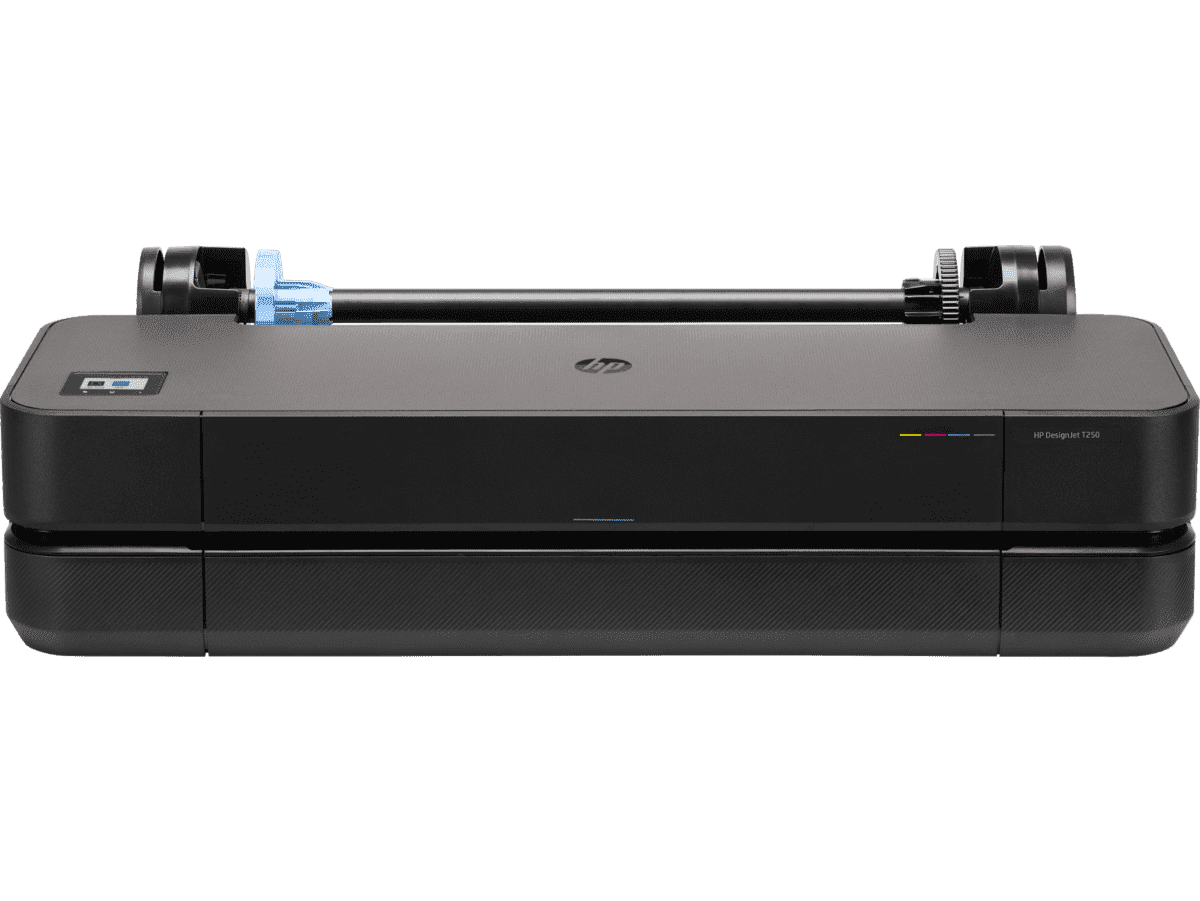
HP DesignJet T250 24-inch Compact Large Format A1 Plotter Printer + HP DesignJet T200/T600 Automatic Sheet Feeder + HP Installation Service for Design
A1 Colour HP DesignJet Large Format Printer, Perfect for Small Offices & Business Print 30 sec/page on A1; 76 A1 prints per hour USB, Ethernet, Wi-Fi Touchscreen; Automatic document feeder; Front USB flash drive port
MYR 5860.00MYR 4980.00Buy Now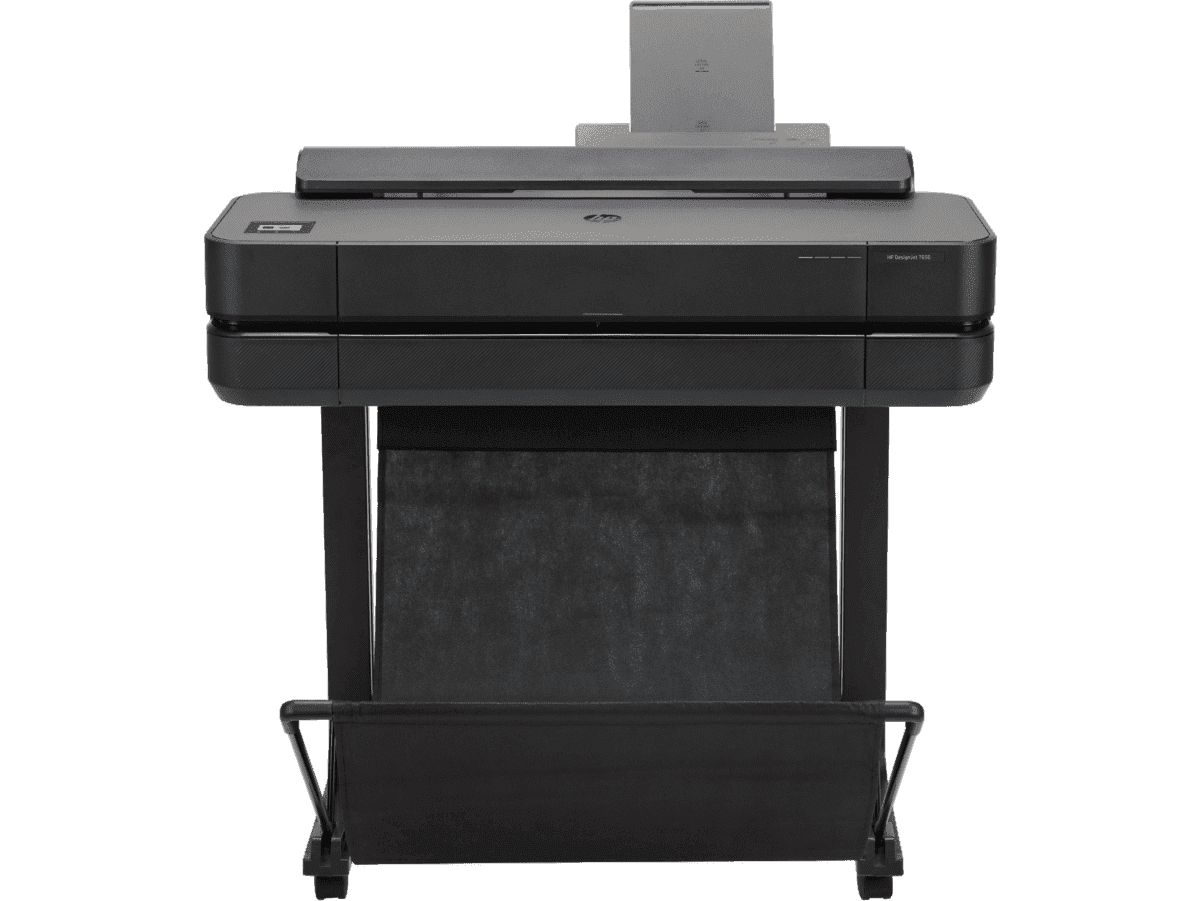
HP DesignJet T650 24-in Printer + HP Installation Service for DesignJet Series Entry Level (APJ)
Functions: PrintAuto sheet feeder: A4, A3; manual feed: A4, A3, A2, A1Print quality color: Up to 2400 x 1200 optimized dpiPrint speed: 26 sec/page on A1, 81 A1 prints per hour[1]Number of print cartridges: 4 (C, M, Y, K)
MYR 8570.00MYR 6880.00Buy Now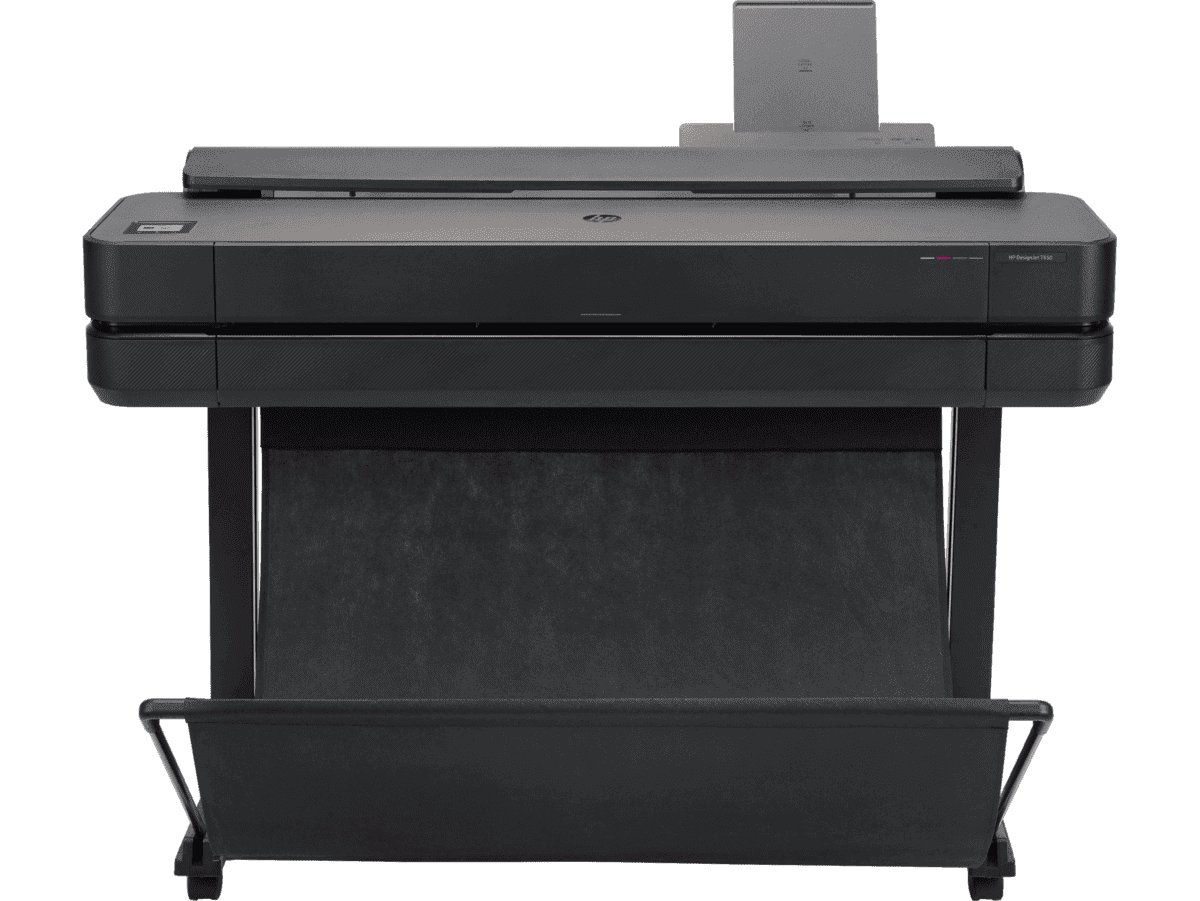
HP DesignJet T650 36-in Printer + HP Installation Service for DesignJet Series Entry Level (APJ)
Functions: PrintAuto sheet feeder: A4, A3; manual feed: A4, A3, A2, A1, A0Print quality color: Up to 2400 x 1200 optimized dpiPrint speed: 25 sec/page on A1, 82 A1 prints per hour[1]Number of print cartridges: 4 (C, M, Y, K)
MYR 11640.00MYR 9880.00Buy Now
Anda mungkin juga suka
 Pencetak Plotter
Print Scheduling Tips for Lower AEC Project Overheads
 Pencetak Plotter
Reducing High-Volume Printing Costs in Malaysian AEC
 Pencetak Plotter
Why using HP MFP for scanning helps reduce rework
- HP DesignJet
Cost-effective printing of safety plans and wayfinding information
- Kelestarian
Paper-saving techniques when printing AEC blueprints
- How-To
How to nake your printer faster for urgent blueprints
- Pencetak Plotter
Plotter care habits that keep your blueprints job-ready
- Alat Digital
Remote printing guide to increase AEC workflow efficiency
- Kelestarian
How scheduling plotter saves electricity costs
- Pencetak Plotter
Cut AEC operating costs with HP Plotters
- HP DesignJet
6 tips to portfolio printing for AEC professionals
- Alat Digital
How HP Click can streamline working processes
 HP DesignJet
Blueprint annotation guide: How to add notes that stay sharp on paper
 GIS
GISPrinting topographical maps: What AEC professionals should know
 How-To
A guide to large format printing for architects and designers
 GIS
GISHow GIS mapping tools support large format printing for civil engineering
 How-To
How to use large format plotters for facility management floorplans
 How-To
Common mistakes and fixes for poor-quality blueprints
 Pencetakan CAD
Common print file types for blueprints explained
 How-To
Common printing mistakes: How to avoid costly errors in large format jobs