Blog
Filter categoryCalibrate your plotter for sharper prints

Technical Printing
|21 Oct 2024
Plotters are ideal for producing the accurate and detailed prints required in the AEC and large format design printing industries. These machines are highly versatile and can create large prints with precise scaling and superior detail. But without the right calibration, it's impossible to get the full benefits your plotter printer has to offer. Proper calibration affects print quality, accuracy, and overall performance, ensuring large format prints meet the expected specifications required for detailed projects. Our guide explains what plotter calibration is, the importance of accurate calibration, and how to calibrate a plotter.
What Is Plotter Calibration?
Plotter calibration is a process that allows you to correct scaling discrepancies, maintain colour consistency, improve detail, and adjust for custom paper sizes. You'll typically need to use software designed to work with your plotter to adjust printer settings in ways that ensure the production of accurate, high-quality prints.
Understanding the Calibration Process
How Plotter Calibration Affects Print Quality
Calibration ensures accuracy in detail and colour quality. Calibrating your plotter to your design's specifications will ensure you have accurate lines, colour consistency, and zero distortion in detailed images.
Ensuring Accurate Line Widths and Detail
Maintaining Colour Consistency Across Prints
Avoiding Distorted or Misaligned Prints
Step-by-Step Guide on How to Calibrate a Plotter

Depending on your circumstances, your plotter may need colour calibration, paper calibration, or both. Calibrate colour when there are noticeable discrepancies in print quality. Perform paper calibration when an image quality issue exists that hasn't been resolved by troubleshooting.
Colour Calibration
Paper Calibration
Running Test Prints for Optimal Calibration
Benefits of Regular Plotter Calibration
Plotter calibration ensures your plotter is prepared to produce accurate prints free of errors. As a result, you can eliminate trial and error for a more efficient workflow.
Reducing Print Errors and Avoiding Costly Reprints
Extending the Lifespan of Your Plotter
Enhancing Workflow Efficiency and Output Quality
Why Calibration Is Key to Professional-Quality Prints
Quality assurance is an essential aspect of the printing industry. Precision is crucial in the AEC industry. Calibration ensures that accurate colours and lines will be produced on final prints. Whether you're plotting blueprints and technical drawings for AEC projects or precise colour images, calibration will allow you to develop prints with fewer errors and higher quality that better meet client expectations.
HP plotters are praised in the AEC and technical print industries for their ability to produce precise, large-scale prints. The right plotter for your needs provides exceptional print accuracy, ease of use, and the ability to maintain consistent quality without errors. As a worldwide leader in advanced architectural printing solutions, HP creates large format plotters that provide the widest range of colours, efficiency, and precision. If you have questions about the ideal plotter for your professional needs, then we can help. Contact an HP representative to learn more.
Explore plotter printers for your needs

HP DesignJet T850 36-in Multifunction Printer + HP Installation Service for DesignJet Series Entry Level (APJ)
A0 Color HP DesignJet Large Format Printer, Perfect for Business Print, copy, scan Dynamic security enabled printer 25 sec/page on A1 Ethernet, Wi-Fi Touchscreen, Automatic document feeder, Front USB flash drive port, Scan to PDF
MYR 18365.00MYR 17480.00Buy Now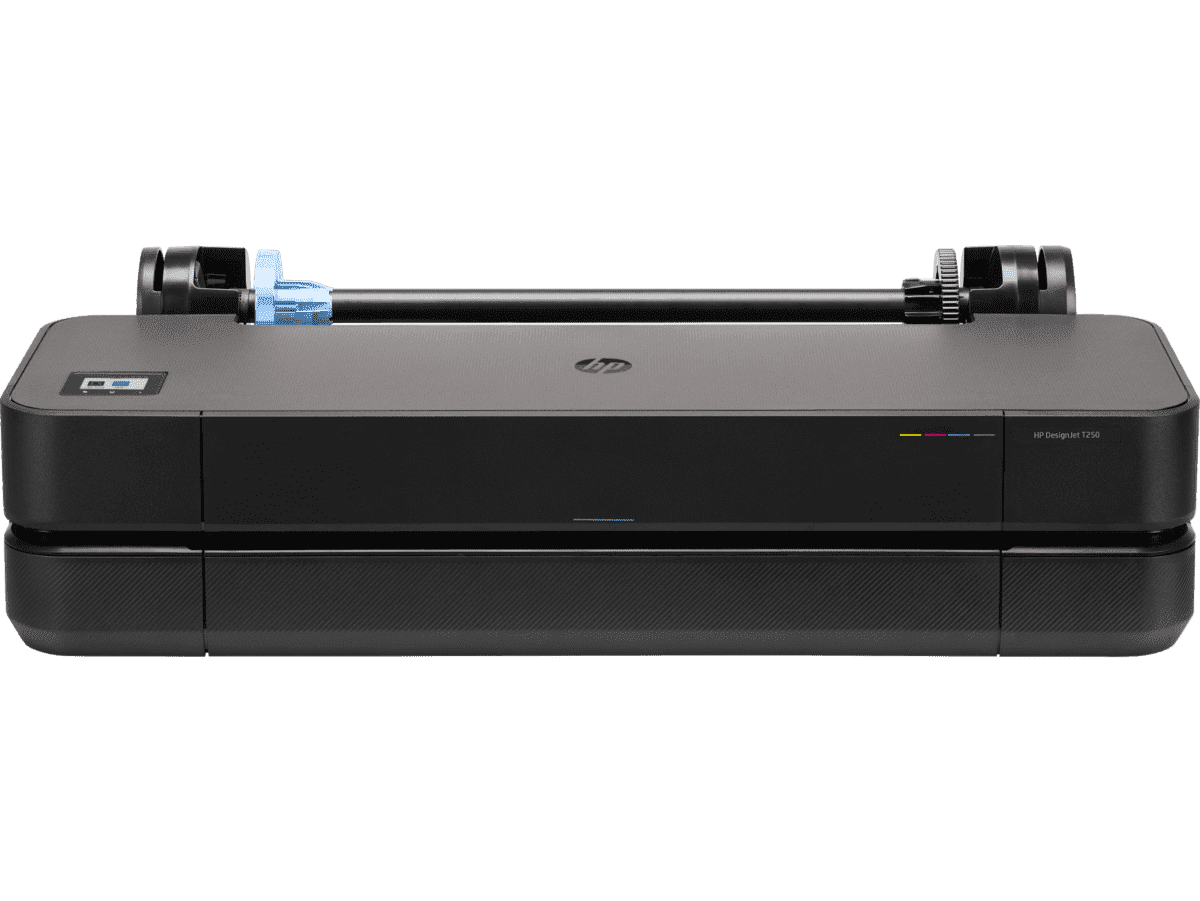
HP DesignJet T250 24-inch Compact Large Format A1 Plotter Printer + HP DesignJet T200/T600 Automatic Sheet Feeder + HP Installation Service for Design
A1 Colour HP DesignJet Large Format Printer, Perfect for Small Offices & Business Print 30 sec/page on A1; 76 A1 prints per hour USB, Ethernet, Wi-Fi Touchscreen; Automatic document feeder; Front USB flash drive port
MYR 5860.00MYR 4980.00Buy Now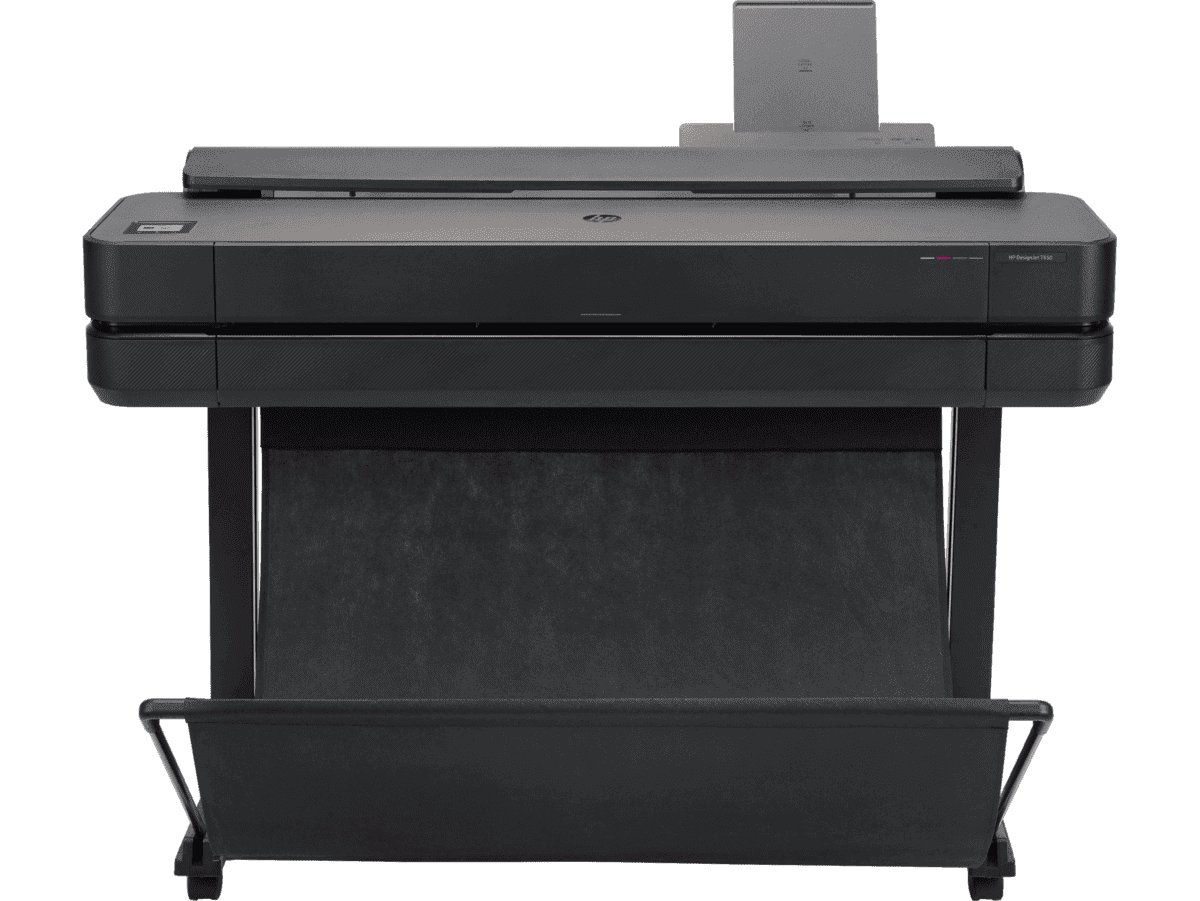
HP DesignJet T650 36-in Printer + HP Installation Service for DesignJet Series Entry Level (APJ)
A0 Colour HP DesignJet Large Format Printer, Perfect for Small Offices, Business & Enterprise Print Sheet feed, Roll feed, Automatic Sheet Feeder, Media Bin, Automatic Horizontal Cutter USB, Ethernet, Wi-Fi HP Click, HP Smartapp
MYR 11640.00MYR 9880.00Buy Now


