Blog
Filter categoryPlotter paper jam troubleshooting guide

Technical Printing
|15 Oct 2024
Professionals in industries relying on large format printing have come to depend on the reliability of their printers. An unexpected paper jam in a printer plotter wastes time and can lead to costly damage to the plotter when not addressed properly. In this guide, we'll explore the common reasons for a plotter jam and provide step-by-step solutions.
Common Causes of Plotter Paper Jams
If you're going to address a paper jam in a printer plotter properly, you first need to know what causes them. Two primary issues contribute to the majority of plotter jams:
Incorrect Paper Size or Type
Worn Out Rollers or Print Heads
Step-by-Step Guide to Fix Plotter Jams
Any paper jam in a printer plotter should be addressed promptly to keep your plotter from becoming damaged. Follow the steps below to fix plotter paper jams:
Safely Removing Paper Jams Without Damaging the Plotter
Inspecting for Any Remaining Obstructions
Resetting the Plotter After Clearing a Jam
Preventing Future Plotter Paper Jams

Ideally, you'll prevent a paper jam in a printer plotter from ever occurring rather than having to deal with them when they do. The best practices below will help minimise the chances of a jam:
Properly Loading Paper Into the Plotter
Regular Maintenance to Avoid Paper Jam Issues
Using the Correct Paper Type and Quality
How HP Plotters Help Reduce Paper Jams
Advanced Features for Jam Prevention
Efficient Paper Handling and Automatic Alignment
Keep Your Plotter Running Smoothly by Troubleshooting and Preventing Jams
Armed with the knowledge of how plotter paper jams occur and how to address them when they do, you'll be able to reduce downtime and significantly extend your plotter's life. To get even more life out of your investment, consider taking advantage of the advanced features offered by the HP DesignJet line.
Explore plotter printers for your needs

HP DesignJet T850 36-in Multifunction Printer + HP Installation Service for DesignJet Series Entry Level (APJ)
A0 Color HP DesignJet Large Format Printer, Perfect for Business Print, copy, scan Dynamic security enabled printer 25 sec/page on A1 Ethernet, Wi-Fi Touchscreen, Automatic document feeder, Front USB flash drive port, Scan to PDF
MYR 18365.00MYR 17480.00Buy Now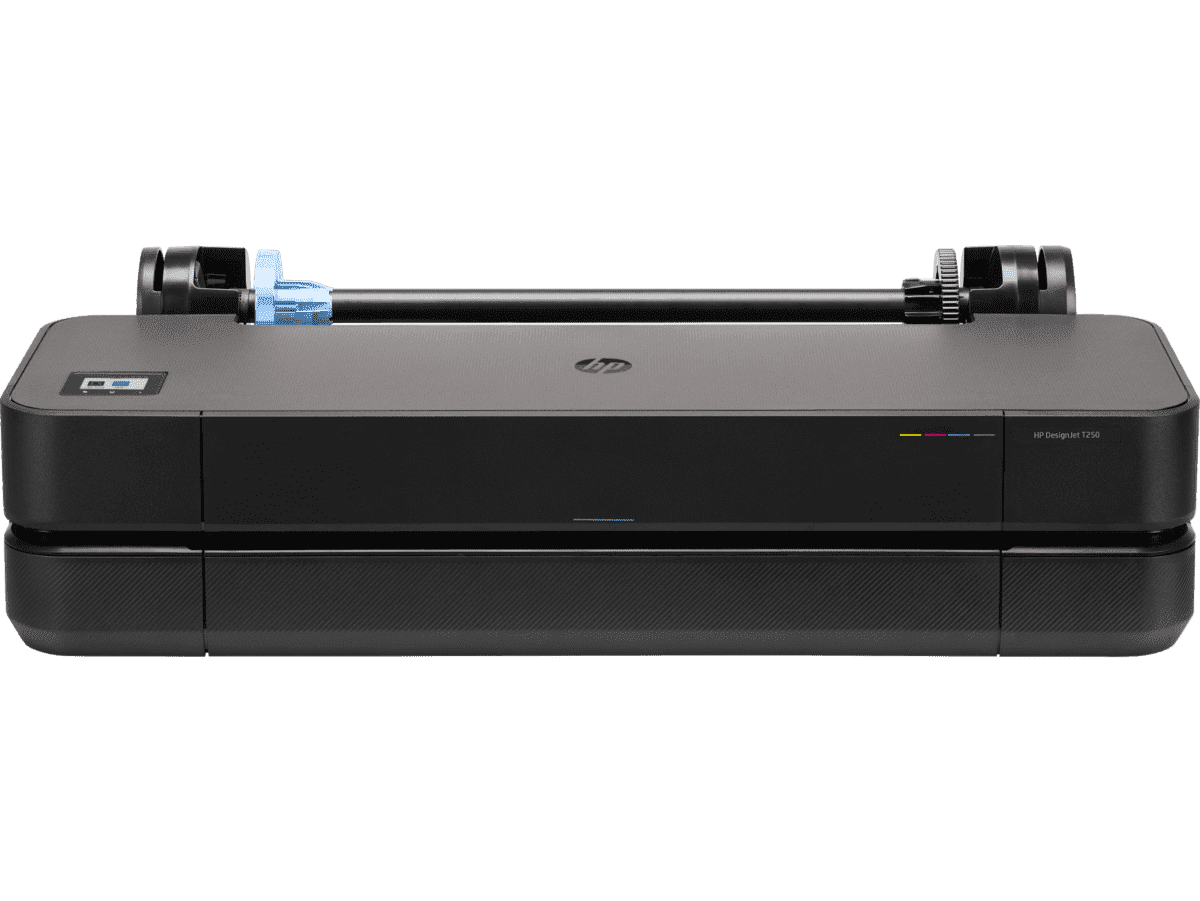
HP DesignJet T250 24-inch Compact Large Format A1 Plotter Printer + HP DesignJet T200/T600 Automatic Sheet Feeder + HP Installation Service for Design
A1 Colour HP DesignJet Large Format Printer, Perfect for Small Offices & Business Print 30 sec/page on A1; 76 A1 prints per hour USB, Ethernet, Wi-Fi Touchscreen; Automatic document feeder; Front USB flash drive port
MYR 5860.00MYR 4980.00Buy Now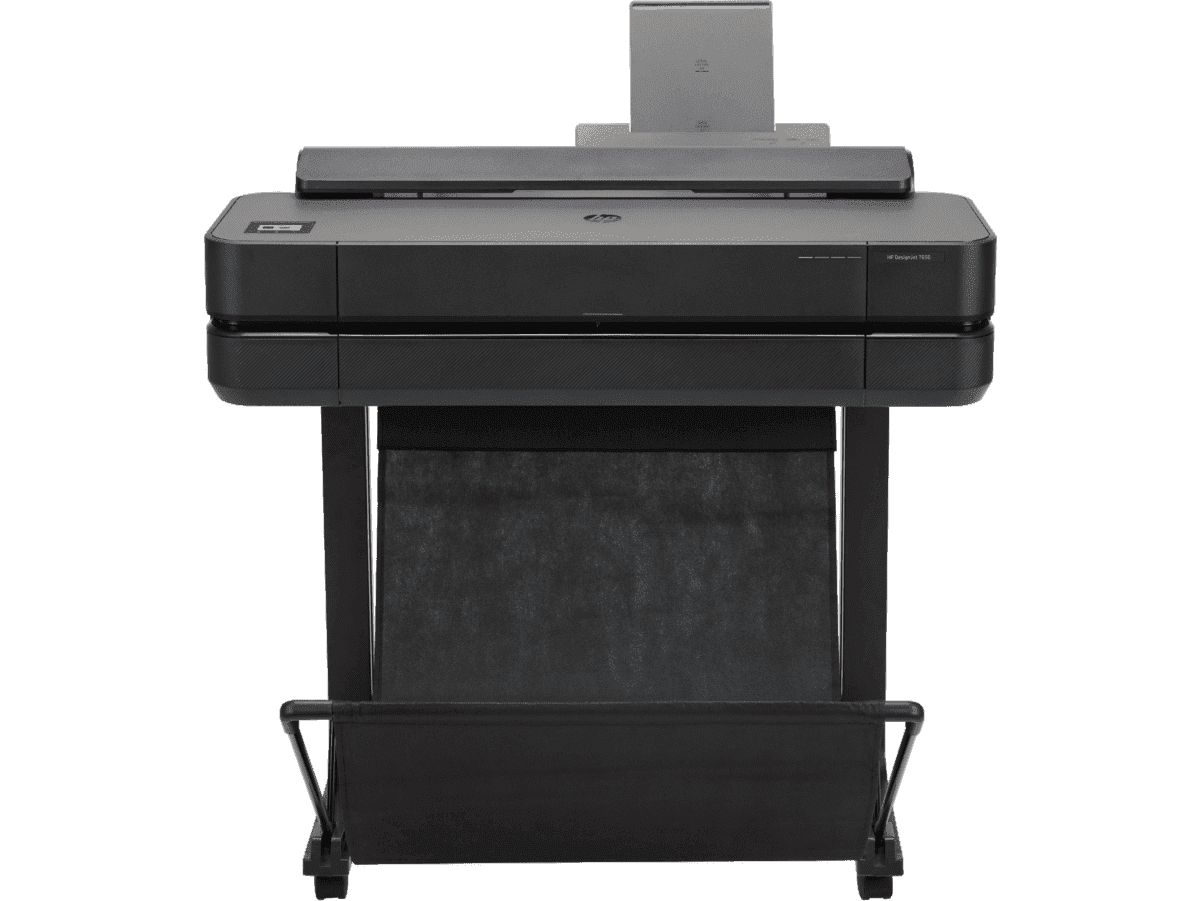
HP DesignJet T650 24-in Printer + HP Installation Service for DesignJet Series Entry Level (APJ)
A1 Colour HP DesignJet Large Format Printer, Perfect for Small Offices, Business & Enterprise Print 26 sec/page on A1; 81 A1 prints per hour Sheet feed, Roll feed, Automatic Sheet Feeder, Media Bin, Automatic Horizontal Cutter USB, Ethernet, Wi-Fi HP Click, HP Smartapp, HP Wolf Essential Security
MYR 8570.00MYR 6880.00Buy Now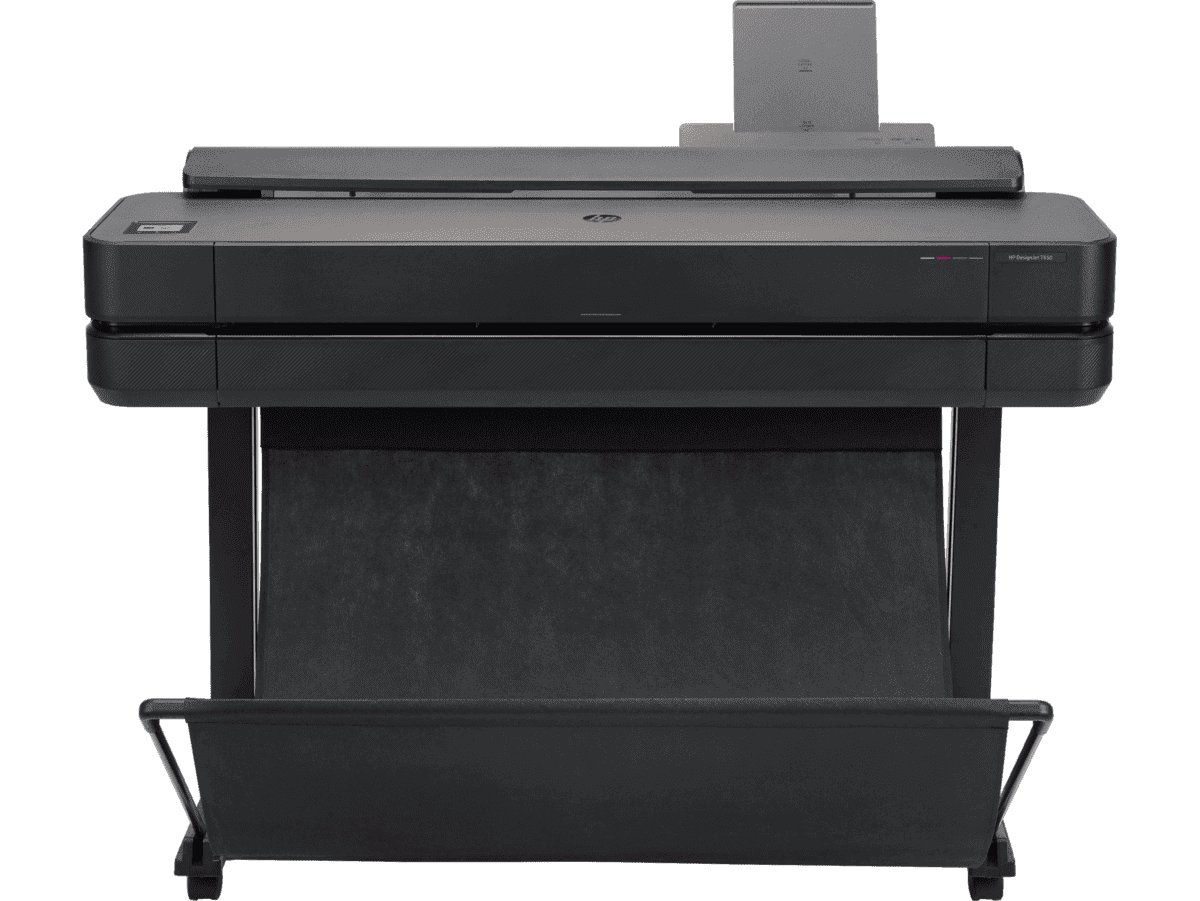
HP DesignJet T650 36-in Printer + HP Installation Service for DesignJet Series Entry Level (APJ)
A0 Colour HP DesignJet Large Format Printer, Perfect for Small Offices, Business & Enterprise Print Sheet feed, Roll feed, Automatic Sheet Feeder, Media Bin, Automatic Horizontal Cutter USB, Ethernet, Wi-Fi HP Click, HP Smartapp
MYR 11640.00MYR 9880.00Buy Now


