Blog
Filter categoryAutoCAD AEC batch plotting for drawings

Technical Printing
|11 Oct 2022
There are so many architectural and engineering professionals in Malaysia who use AutoCAD in their workflows, and it is used widely everyday in various industries. Plotting all your CAD drawings may feel like the end of your job, but it's just the beginning of a much larger project. When you have a lot of pages that you need to plot, the task can seem daunting. With AutoCAD, you have a great way to save time and energy when plotting multiple drawings through batch plotting. Batch plot AutoCAD functions allow you to plot a group of drawings in one go without opening each drawing individually.
This can save time if you have many drawings to plot. In addition, AutoCAD batch plotting can help to ensure that all your drawings are plotted correctly, as you can specify the settings for each drawing in advance.
In this guide to batch plotting drawings in AutoCAD, we go through all the steps you need to take to successfully work your way through the massive undertaking of getting a project out the door and onto the next step.
Your Complete Guide to Batch Plotting Drawings in AutoCAD
How do you create a batch plot in AutoCAD?
How do you delete a batch plot in AutoCAD?
Which command allows you to plot multiple drawings in AutoCAD?
What is batch print in AutoCAD?
How do you manage multiple drawings in AutoCAD?
How do you print multiple layouts in AutoCAD?
How do you change the paper size in a batch plot AutoCAD operation?
5 Tips to Ensure Print Precision From Your CAD Drawings

CAD drawings are precise representations of real-world objects, so it's important to ensure they print with that same level of precision. Here are a few tips to achieve print precision from your CAD drawings:
- Use a high-quality printer: A high-quality printer will help ensure that your prints are of the highest quality. This entails using a printer that has a high resolution and can print on a variety of media types.
- Use the correct paper size: Make sure to use the correct paper size when printing your CAD drawings. The smaller paper size will cause your prints to be scaled down, leading to reduced precision.
- Use the correct plot scale: In AutoCAD, you can set the plot scale to ensure that your drawings print at the correct size. To do this, open the Plot box and click on the Settings tab. Then, select the desired scale from the drop-down list in the Plot Scale area.
- Use the right plotter configuration: Configuring your plotter correctly will help to ensure that your prints are of the highest quality. To do this, open the Plot dialogue box and click on the Settings tab. Then, in the Plotter Configuration area, select the desired plotter configuration from the drop-down list or click the icon to create a new one.
- Use high-quality paper for AutoCAD batch plot printing projects: High-quality paper will help ensure that your prints are of the highest quality.
How do you print from AutoCAD to a large format printer?
Considerations for Batch Plotting in the Philippines
Many Filipino AEC firms face unique printing conditions, including high humidity, tropical heat, and inconsistent internet connectivity. It is essential to plan batch plotting workflows that account for stable power supplies, surge protection, and on-site printer calibration using HP-authorised support. Additionally, when sending large plot jobs from various locations such as Metro Manila, Cebu, or Davao ensure your team uses reliable RIP software with local servicing options. This helps to maintain efficiency, reduce delays, and guarantee print accuracy across multiple drawings and formats.
AutoCAD page setup can save you time and energy when printing multiple drawings. With batch plotting, you can print multiple drawings at once without having to open and configure each one individually. AutoCAD also makes it easy to simultaneously change the page setup for multiple drawings. So if you need to change your plotter configuration, paper size, or any other setting, you can do it in one go with batch plotting AutoCAD options. When you need to print a bunch of drawings, save yourself some time and energy with AutoCAD page setup. Also, for access to high-quality printers and hardware options, contact us today to discuss your printing needs.
Discover how innovation is streamlining workflows, producing prints of unmatched quality and increasing IT efficiency like never before.
Explore plotter printers for your needs

HP DesignJet T850 36-in Multifunction Printer + HP Installation Service for DesignJet Series Entry Level (APJ)
A0 Color HP DesignJet Large Format Printer, Perfect for Business Print, copy, scan Dynamic security enabled printer 25 sec/page on A1 Ethernet, Wi-Fi Touchscreen, Automatic document feeder, Front USB flash drive port, Scan to PDF
MYR 18365.00MYR 17480.00Buy Now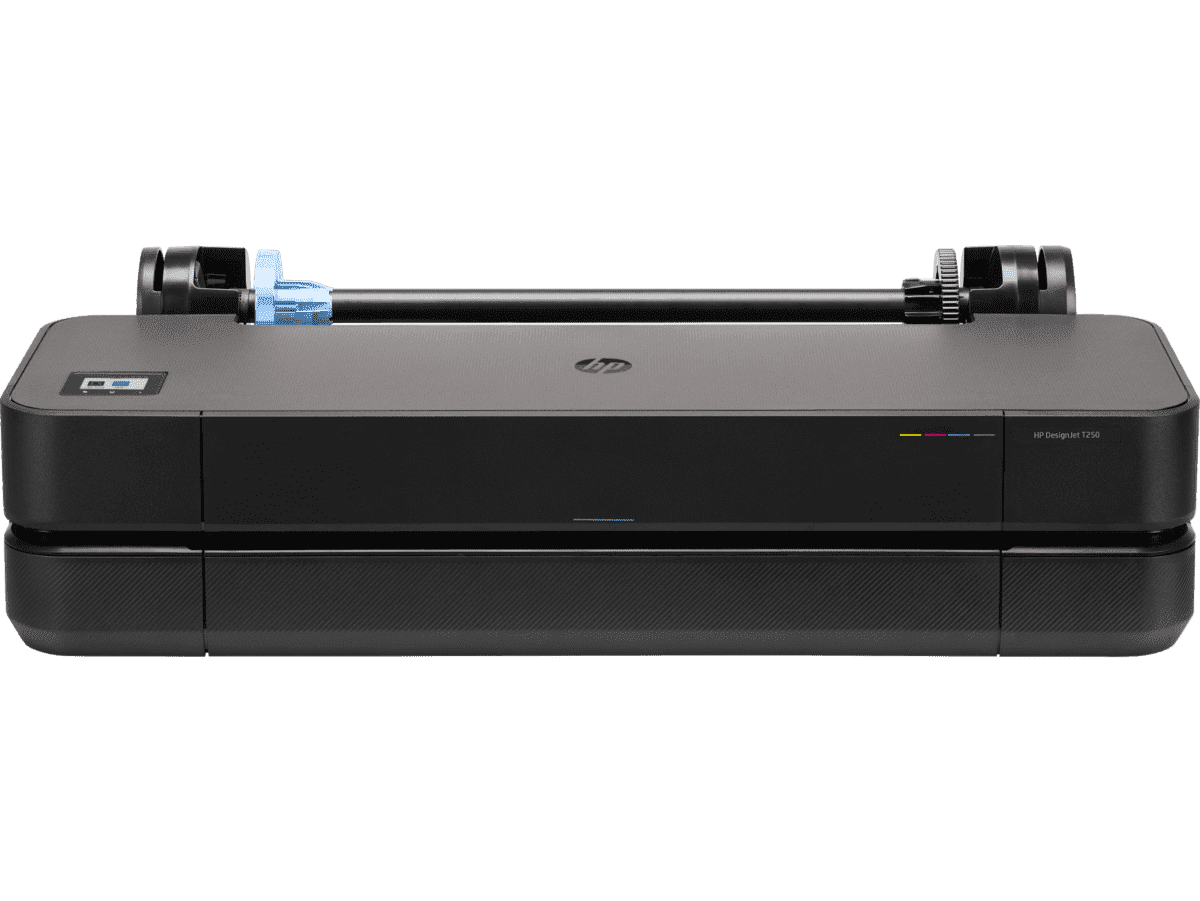
HP DesignJet T250 24-inch Compact Large Format A1 Plotter Printer + HP DesignJet T200/T600 Automatic Sheet Feeder + HP Installation Service for Design
A1 Colour HP DesignJet Large Format Printer, Perfect for Small Offices & Business Print 30 sec/page on A1; 76 A1 prints per hour USB, Ethernet, Wi-Fi Touchscreen; Automatic document feeder; Front USB flash drive port
MYR 5860.00MYR 4980.00Buy Now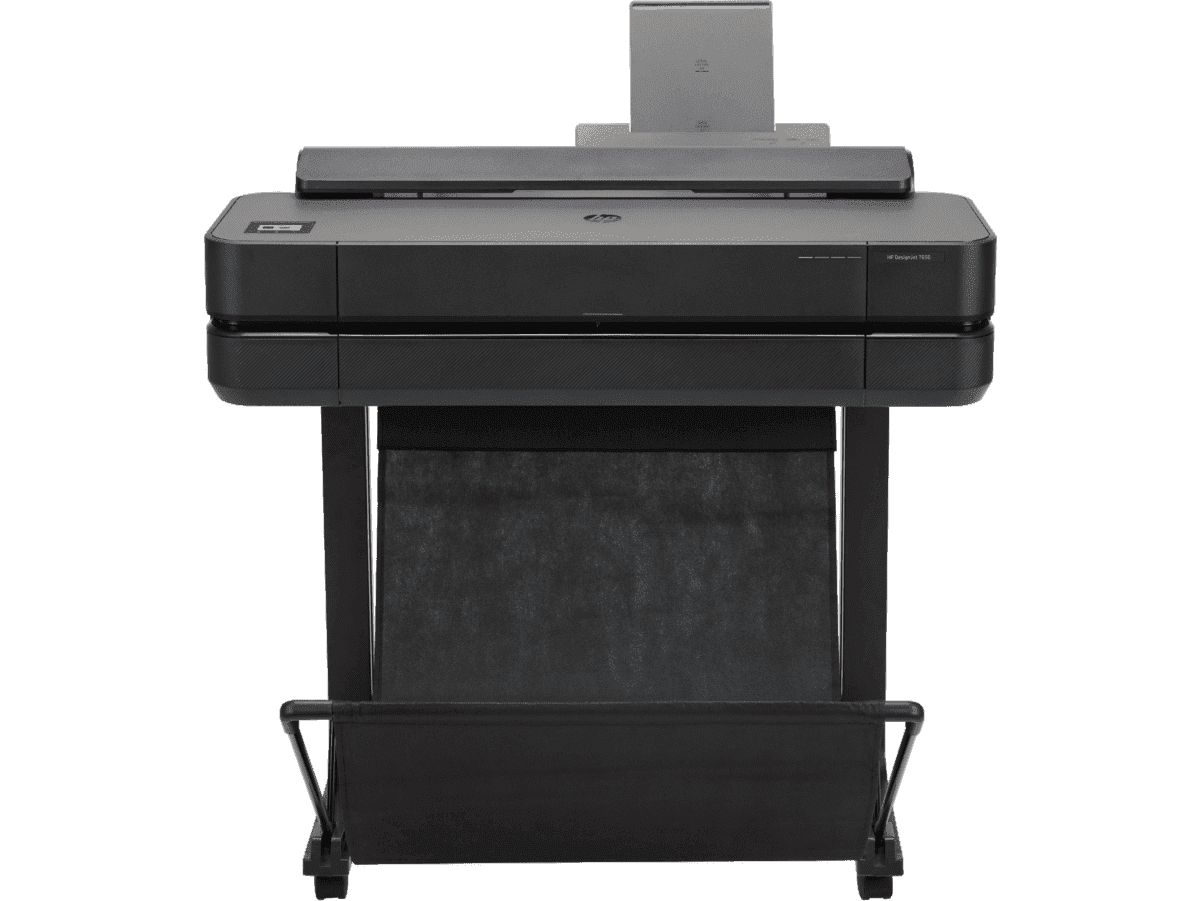
HP DesignJet T650 24-in Printer + HP Installation Service for DesignJet Series Entry Level (APJ)
A1 Colour HP DesignJet Large Format Printer, Perfect for Small Offices, Business & Enterprise Print 26 sec/page on A1; 81 A1 prints per hour Sheet feed, Roll feed, Automatic Sheet Feeder, Media Bin, Automatic Horizontal Cutter USB, Ethernet, Wi-Fi HP Click, HP Smartapp, HP Wolf Essential Security
MYR 8570.00MYR 6880.00Buy Now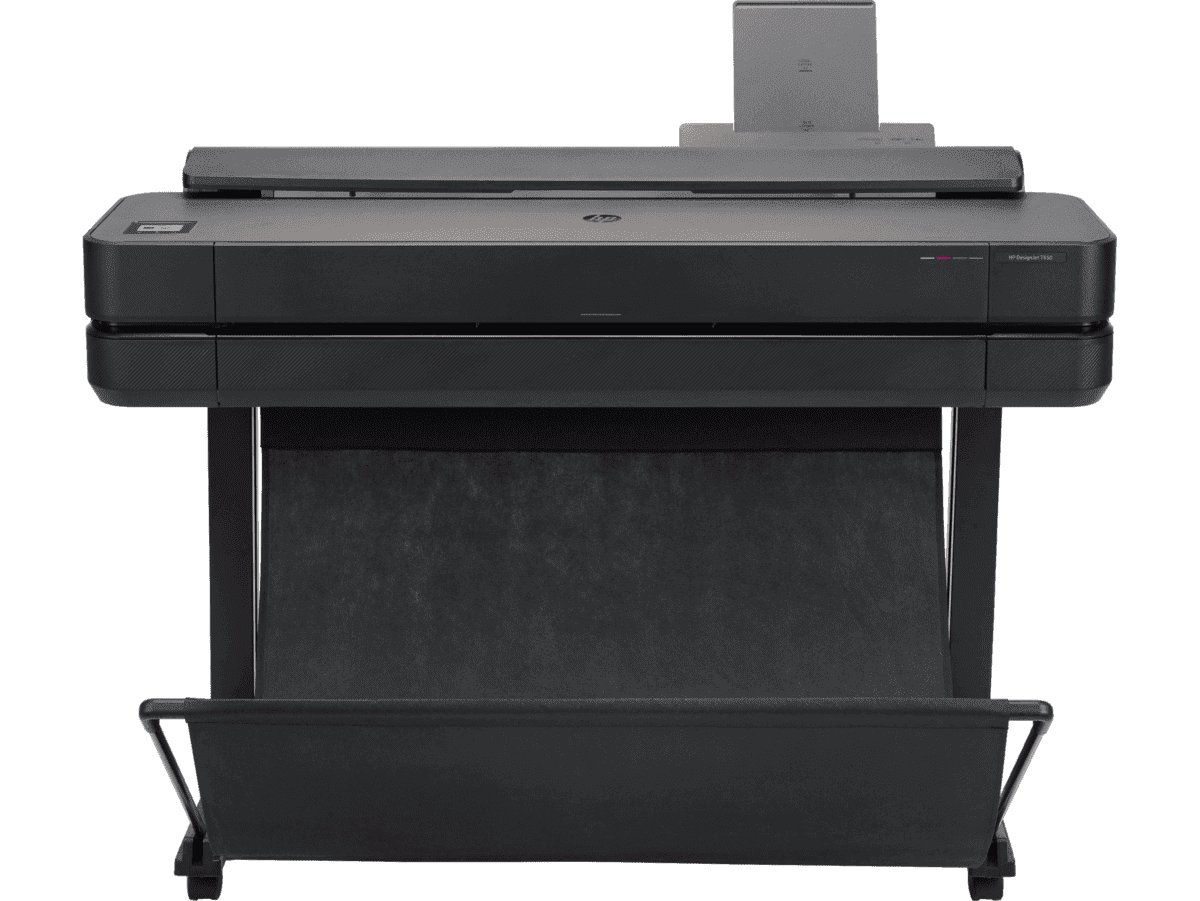
HP DesignJet T650 36-in Printer + HP Installation Service for DesignJet Series Entry Level (APJ)
A0 Colour HP DesignJet Large Format Printer, Perfect for Small Offices, Business & Enterprise Print Sheet feed, Roll feed, Automatic Sheet Feeder, Media Bin, Automatic Horizontal Cutter USB, Ethernet, Wi-Fi HP Click, HP Smartapp
MYR 11640.00MYR 9880.00Buy Now


