Blog
Filter categoryPlan View vs. Elevation View: How to Prepare Each for Printing

Technical Printing
|15 Apr 2026
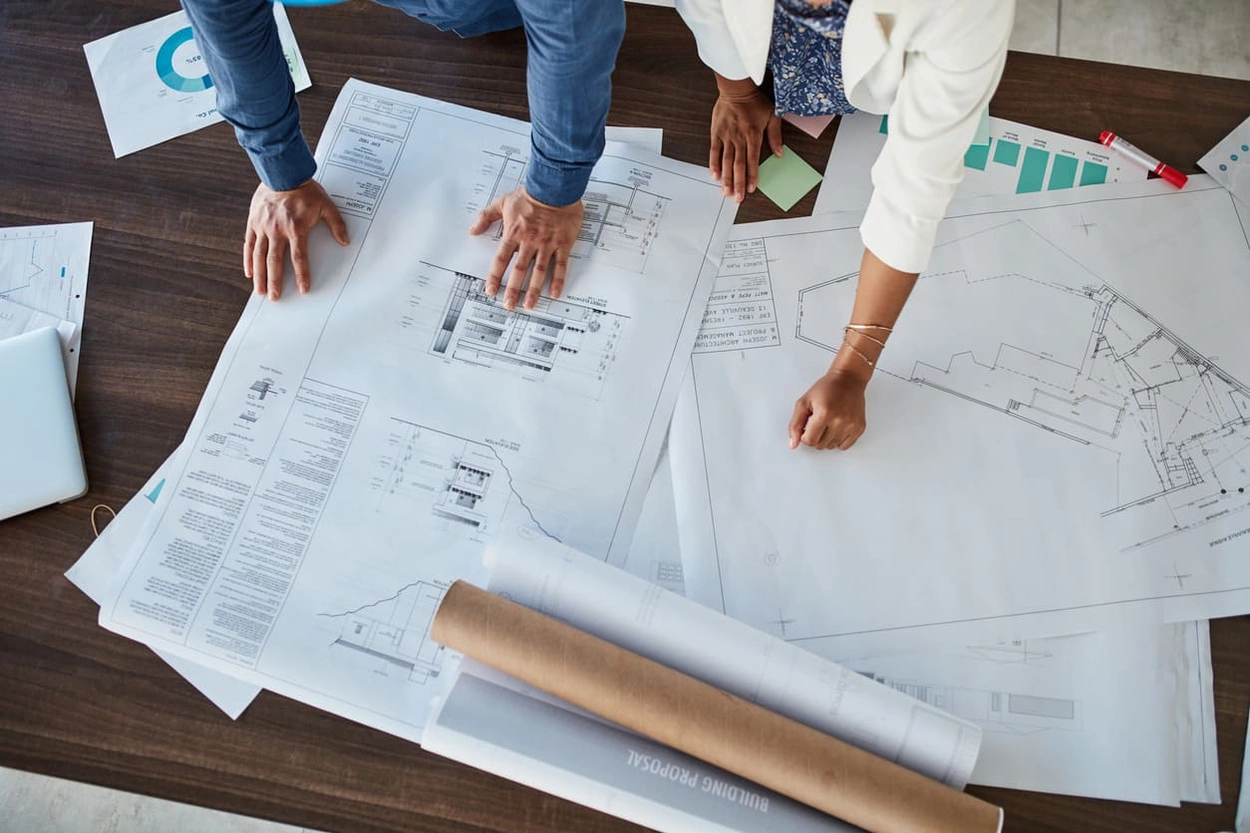
Every architectural or construction drawing set includes plan and elevation views. They work together to represent a structure, but they have different needs when it comes to layout, scale, and annotation. A well-prepared floor plan aids horizontal layouts and floor designs. Façade treatments, structural heights, and other vertical elements need a clear elevation view. In this blueprint annotation guide, you'll learn the formatting differences between these two drawing types and how you can optimise each for large format printing. We'll go over everything from scaling tips to annotation placement, preparing you to use HP large format printers to output plan and elevation views with the clarity, precision, and professional consistency the job demands.
What Is the Difference Between Plan and Elevation Views?
Understanding Top-Down (Plan) vs Vertical (Elevation) Layouts
A plan view shows a structure as seen from above. It's a horizontal cross-section that shows the spatial relationship between rooms, walls, openings, and fixtures. Its purpose is to demonstrate how the space flows at a given level.
An elevation view does for the vertical plane what a plan view does for the horizontal plane. It shows the face of the structure as if it were viewed straight on. This captures height relationships, exterior cladding, window and door positions, and more.
When combined, the plan and elevation views give contractors, architects, and engineers a complete three-dimensional view of the structure, enabling them to build with confidence.
Use Cases in Architecture and Construction
Plan views are what come to mind when most people think of architectural drawings. They dictate structural framing, MEP routing, and space planning. On a typical construction drawing set, plan views often lead the document pack, with elevation views following.
The elevation views become critical during the façade detailing process. They are also useful for material specification and compliance checks to meet height and setback requirements. To avoid costly mistakes, both drawings must be print-ready, with accurate construction drawing notes that translate cleanly from screen to large format output.
Formatting Plan Views for Print

Recommended Scale and Orientation Tips
Plan views are almost always printed in landscape orientation. The scale can vary, however, depending on the level of detail required and the sheet size available. Common scales include:
- 1:50
- 1:100
- 1:200
Avoid shrinking a detailed floor plan too much, as it can render the details unreadable. Instead, move up to a larger media size when needed to preserve legibility.
The scale bar should always be within the drawing itself. This way, the document remains accurate even when printed at a different scale.
Annotation Placement and Grid Reference
For consistent output, it's a good idea to create a blueprint annotation guide to be used as a standard across all projects. A typical approach places room labels centrally within spaces, dimension strings outside the outline of the building, and grid references in consistent positions. Avoid placing any text on hatch patterns or dense linework, as it can make it difficult to read during on-site interpretation. For best results, keep annotation layers separated from geometry layers in your CAD or BIM software.
Managing Layer Visibility and Lineweights
Before you send a plan view to print, review the lineweight settings on each layer to ensure compliance with your in-house blueprint annotation guide. Load-bearing walls should have a heavier weight than partition walls. Structural elements should take precedence over furniture or fitout layers. Keeping your line-weight scheme well organised removes ambiguity and makes it easier for tradespeople to understand. To further avoid clutter, disable any layers that aren't needed.
Preparing Elevation Views for Print Clarity
Highlighting Vertical Detail and Material Notes
Elevation views require clear architectural markup printing of material callouts, finish schedules, and height datums. Leader lines with arrowheads are clearer than unlabelled hatch patterns alone. Remember, any reader should be able to interpret your drawing regardless of how unfamiliar they are with your hatch library or internal blueprint annotation guide. Material notes should be placed consistently, typically along the right margin, so they're easy to find and highly visible.
Ensuring Proper Line Hierarchy and Labelling
Line hierarchy also matters for elevation views. The heaviest line in the drawing should be the building outline. Surface lines within the façade should be medium weight, and material texture lines or secondary detail should be the lightest. Each elevation (north, south, and so on) should be clearly labelled, with a reference mark on the site plans and floor plan to help readers orient themselves.
Choosing the Right Sheet Size for Visual Balance
Tall, narrow elevations look best when printed in portrait orientation on A1 or A0 sheets, while wider structures with lower profiles look best in landscape orientation. Use all available whitespace so annotations are as distinct and clear as possible, rather than cramped in a corner. Balance the drawing and its notation to make the use of all available space.
Common Mistakes to Avoid in Drawing Preparation
This blueprint annotation guide also provides a bit of insight into common mistakes that can cause miscommunication or frustration.
Misaligned Views or Inconsistent Scales
A common disruption in a drawing set is having the plan view printed at one scale and the elevation view printed at another, without this difference being clearly marked. Print all views at the same scale when possible. But when it’s not possible, be sure to correctly annotate the scale for each view in the title block.
Overlapping Annotations or Missing Dimensions
The final print often differs significantly from the full zoom view on screen. Most importantly, text and dimension strings that have clear separation at full zoom might overlap in the printed output. Use the print preview tool in your software to catch obvious errors in the layout. It's also helpful to print a draft sheet before printing the final copy.
How HP DesignJet Ensures Consistent Output for All Views
High-Resolution Output for Detailed Elements
HP DesignJet large format printers deliver the high-resolution output needed to accurately reproduce fine linework, small annotations, and complex hatch patterns.
Compatible with CAD and BIM Annotations
To avoid the types of errors and degradation that can come from the conversion process, HP DesignJet printers support direct printing from AutoCAD, Revit, and other industry-standard platforms.
Print Preview and Scaling Tools to Avoid Rework
The print preview functionality built into HP DesignJet printers lets you verify layout, margins, and scale before committing drawings to media.
Print Clear, Accurate Views with Confidence
While plan and elevation views each have distinct formatting requirements, they both need to communicate intent without ambiguity. Professionals can achieve this by applying strategic annotation practices, confirming scale settings, properly setting lineweights, and following other best practices in this blueprint annotation guide.
The right hardware also matters. By leveraging the power of HP large format printers, you can meet professional standards every time. Contact the HP DesignJet team today to find the right printer for your architecture or construction firm.